A Player’s 2026 Guide to Uninstalling Valorant and Starting Fresh
Uninstall Valorant cleanly on PC or console: exit Vanguard first, then remove the game and its clutter.
When a veteran player named Maya opened her PC on a quiet evening in 2026, she noticed that her drive was crowded with games she no longer touched. Valorant, Riot Games’ tactical FPS, still sat in her library, but the spark had faded. She wanted room for new releases, a cleaner startup, and a break from the ranked grind. Her farewell was not dramatic; it was practical. She wanted to know how to remove Valorant cleanly from PC or console without leaving clutter behind. What she found was a process that remained familiar in 2026, yet one small step mattered more than any other: before the usual uninstall routine, the player had to exit Riot’s Vanguard anti-cheat.

🖥️ The PC Ritual: Exit Vanguard First
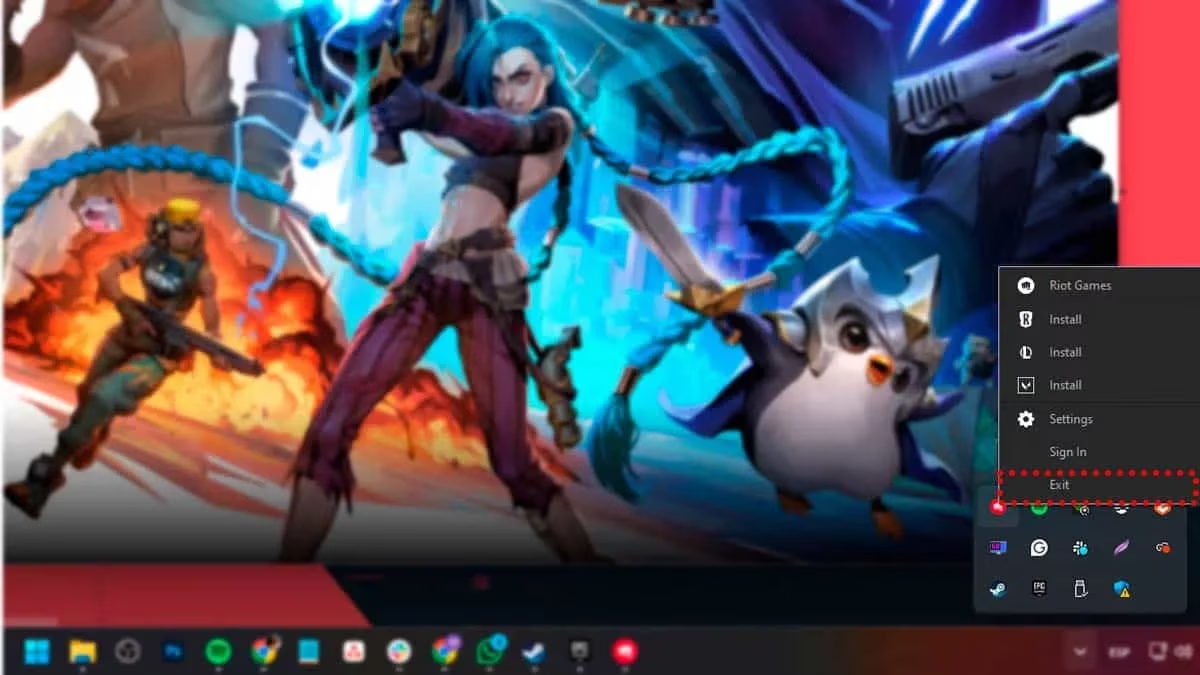
Maya started on Windows. The first move was not in the Control Panel but in the System Tray at the bottom right corner of the screen. There, the Vanguard logo waited. She right-clicked it and chose Exit Vanguard. That detail was easy to miss, but it was essential. Valorant could not be removed instantly through the Control Panel while the anti-cheat was still active. Once Vanguard was closed, the rest of the path became ordinary.
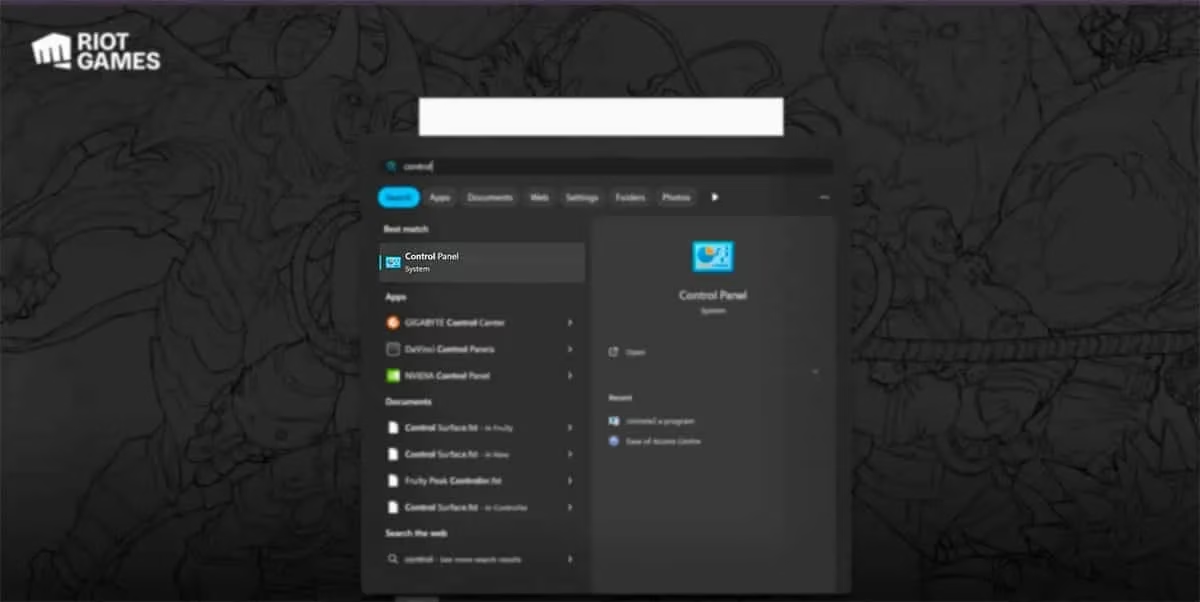
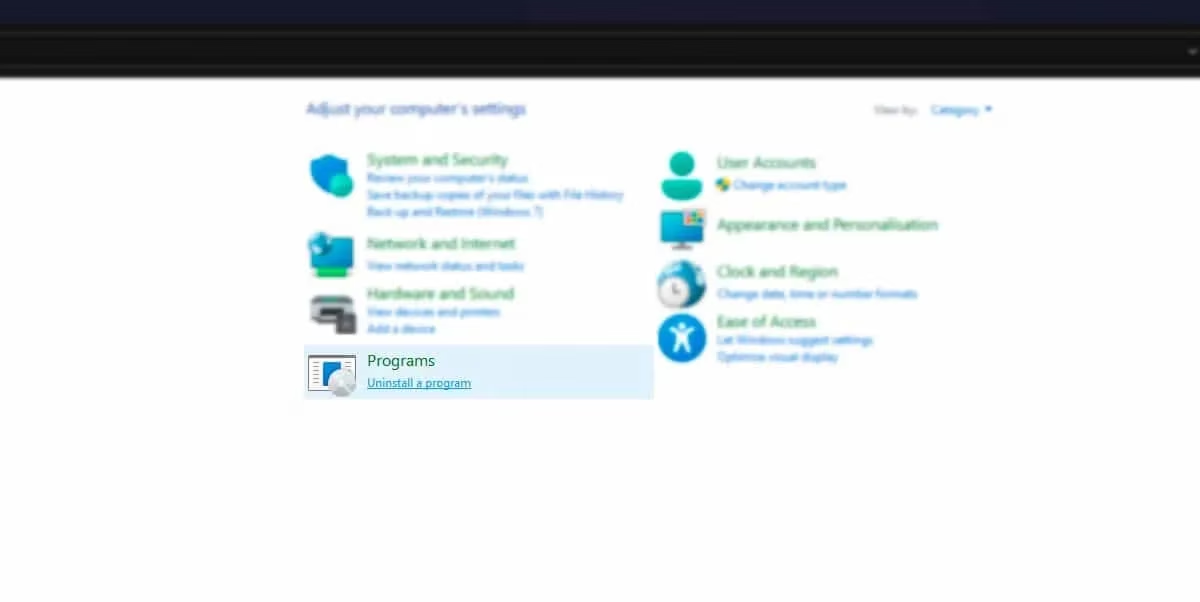
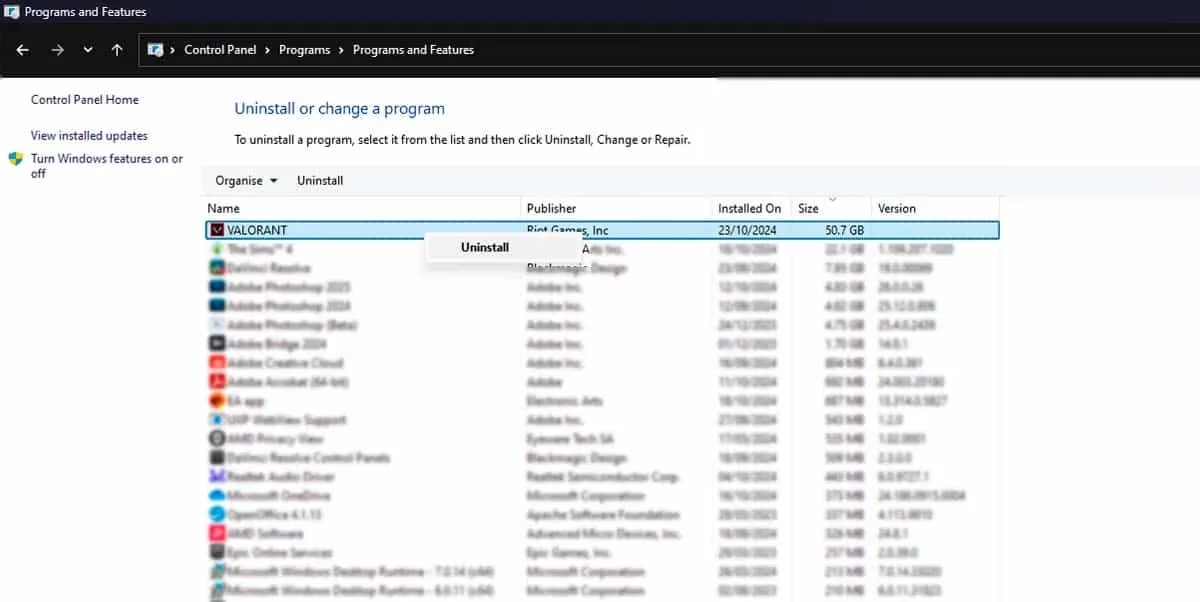
She opened the Windows search bar and typed Control Panel. Inside, she selected the Programs tab and clicked Uninstall a program at the bottom of the list. The familiar list of installed software appeared. She searched for Valorant, selected it, and chose Uninstall. Windows then carried out the removal. After the game was gone, she also noticed a small bonus: Riot’s Vanguard anti-cheat no longer appeared when she started her PC. The startup felt lighter, and the drive had a little more breathing room.
For players who prefer a quick checklist, Maya’s PC route looked like this:
-
Open the System Tray in the bottom right corner of Windows.
-
Right-click the Vanguard logo and select Exit Vanguard.
-
Open the Windows search bar and type Control Panel.
-
Select Programs, then click Uninstall a program.
-
Find Valorant in the list.
-
Select Uninstall and let Windows remove the game.
🕹️ Console Farewells: PS5 and Xbox
Maya’s friend Leo had moved to console and wanted the same clean break. On PS5, the route was short. He navigated to Valorant on the home screen or through the PS5 library, pressed the options button on the controller, and selected Delete from the menu. The game was removed without ceremony.
Xbox followed a slightly different path. Leo returned to the Xbox home screen, pressed the Xbox button on the controller, and moved to the My Games & Apps menu. He selected See All, found Valorant, pressed the menu button with three horizontal lines, and chose Uninstall. The process was quick, and the console storage bar recovered almost immediately.
| Platform | First step | Final action |
|---|---|---|
| PC | Exit Vanguard from the System Tray | Uninstall Valorant through Control Panel |
| PS5 | Open Valorant from the home screen or library | Press options, then select Delete |
| Xbox Series X/S | Open My Games & Apps and find Valorant | Press the menu button, then select Uninstall |
🔁 If the Break Does Not Last
Not every farewell is permanent. A few weeks later, Maya missed the sharp gunplay and the tense retakes. She decided to reinstall Valorant on PC. The route was simple: she visited the official Valorant website, clicked the Play Free icon, signed in to her existing Riot account or created a new one, and selected Download. The installer handled the rest.


Console players could also return through their library. On PS5 or Xbox Series X/S, the player finds Valorant, selects it, and chooses Download, then waits for the platform to restore the game. In 2026, the reinstall path remained as forgiving as the uninstall path was final.
🗑️ The Final Door: Deleting the Account
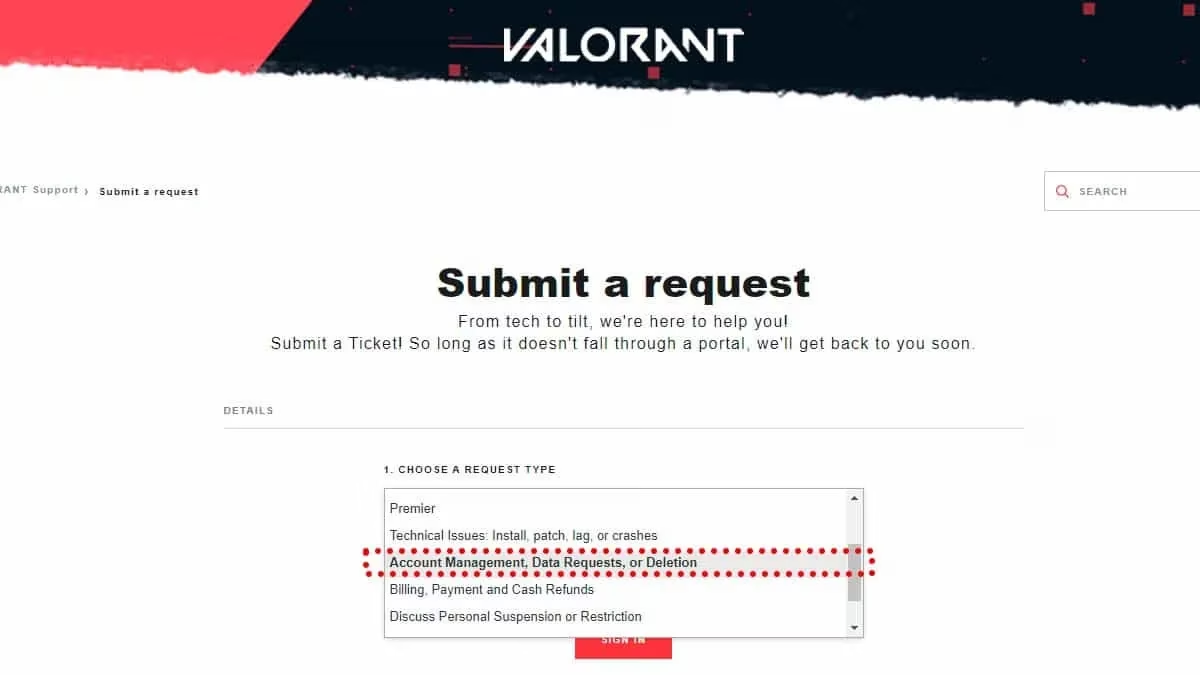
Some players want more than an uninstalled game. They want the account itself gone. Maya considered this after a long break, but she treated it as a serious step. The player goes to the Valorant support webpage, selects Account Management, Data Requests, or Deletion from the drop-down menu, and navigates to I Need Help With my Account. From there, the player chooses I Would Like To Delete My Account, specifies a reason, and submits the request.
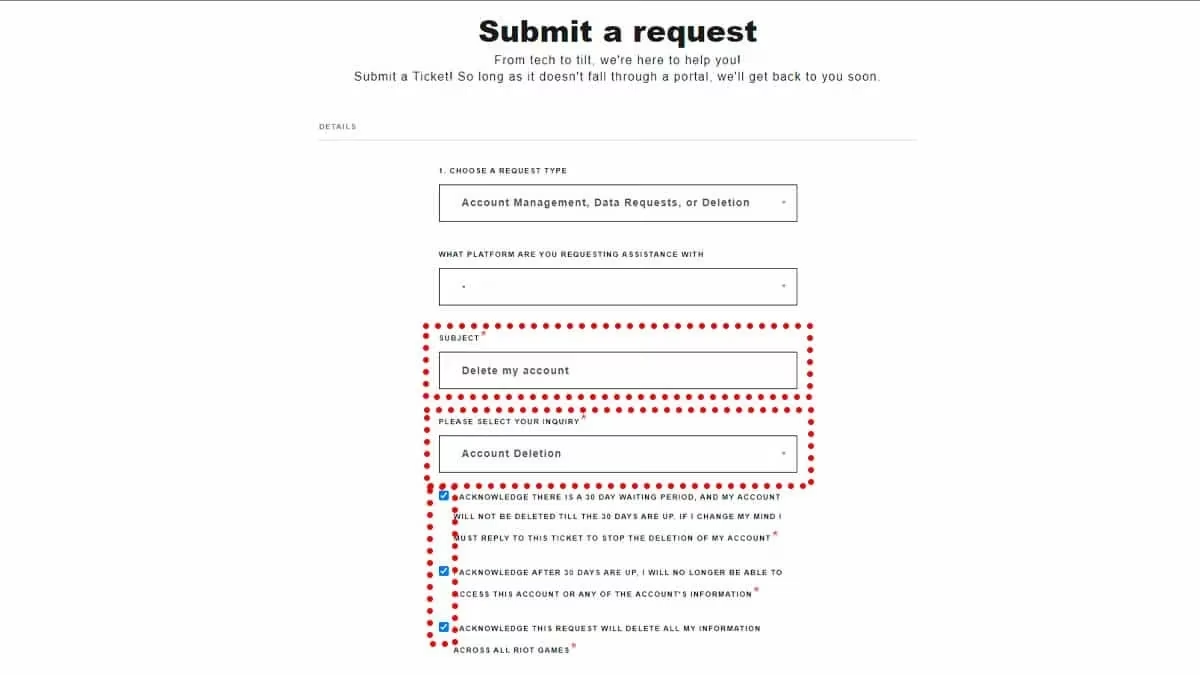
The most important detail is the grace period. Once the account is queued for deletion, the player has up to 30 days to change their mind and keep it. If Riot Games is not notified within that window, the account cannot be recovered. Maya noted that the 30-day buffer made the decision feel less like a trap and more like a final checkpoint.
By the end of her experiment, Maya had learned that uninstalling Valorant in 2026 was not about one button. It was about order: exit Vanguard, remove the game, and decide whether the account should follow. For PC and console players alike, the process was clean, reversible in parts, and surprisingly freeing. The library felt lighter, the startup quieter, and the choice entirely in the player’s hands.